
What are open orders and how can I find them?
First, it’s important to know that every order has both an 'Order status' and a 'Payment status.' You can view both in your Control Panel by navigating to the 'Order List' in the menu and selecting a specific order.
The following combinations are possible:
Order status | Payment status | Visible in orders list | Visible through search | |
1 | Confirmed | Paid | Yes | Yes |
2 | Open | Unpaid | No | Yes |
3 | Open (error message) | Paid | Yes | Yes |
1. In this example, the payment was successful, and the order is confirmed. These orders will appear both in the Order List and can be easily found through a search (e.g., by email address).
2. In the second example, the order status is 'open' and the payment status is 'unpaid.' This can occur for several reasons:
The order remains 'open' because the visitor is still in the Convious ticket shop, and the payment is pending.
The order is 'open' because the payment either failed (e.g., 3DS authentication was unsuccessful) or expired (e.g., the visitor took too long to complete the payment). In some cases, funds may have been temporarily deducted from the customer’s bank account. Typically, these funds are returned to the bank account within a few hours or days, depending on the payment provider’s processing times.
These orders won't appear in the Order List, but you can find them in your Control Panel by searching with an email address.
3. In this example, the order status is 'open,' but the payment was successfully completed. This means the visitor paid but did not receive their tickets. This can occur in the following cases:
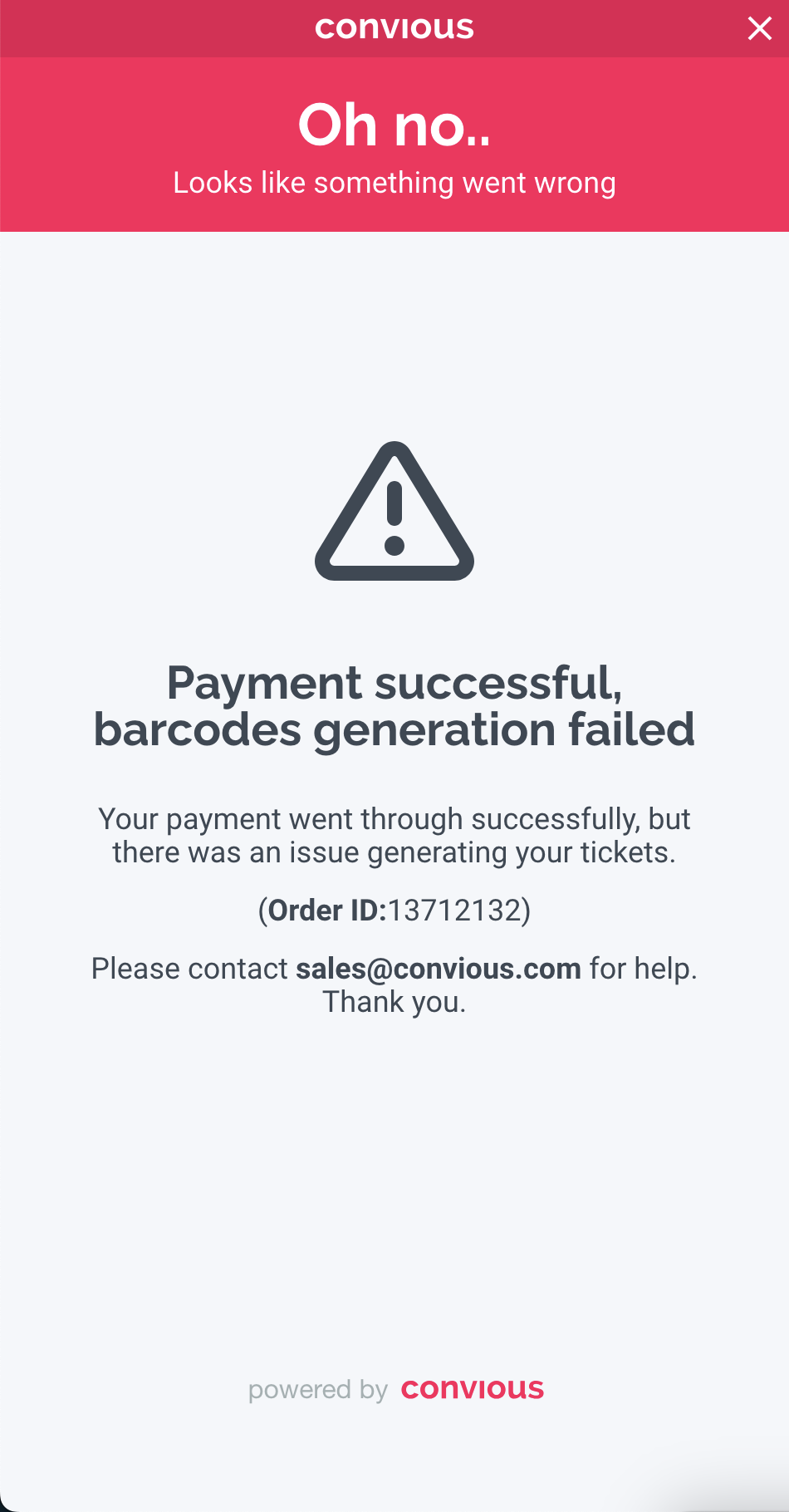
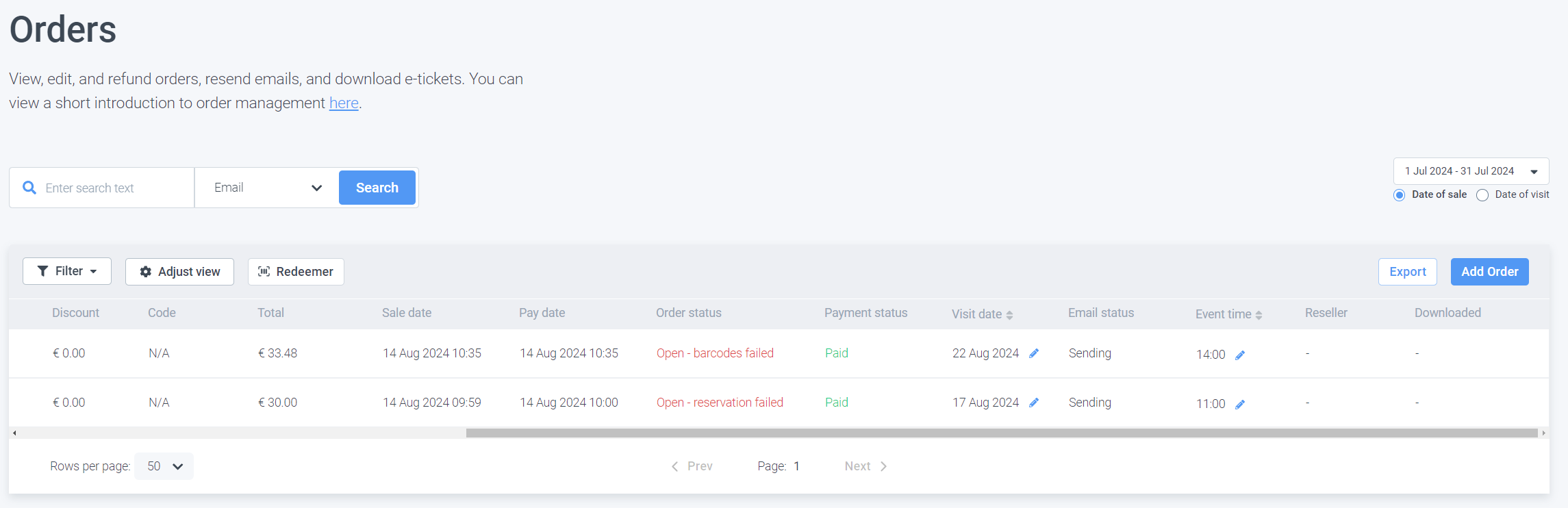
There was an issue with barcode generation, often when working with third parties. The order status will show 'Open - barcodes failed.'
There was a reservation issue, also common with third parties. The order status will then show 'Open - reservation failed.'
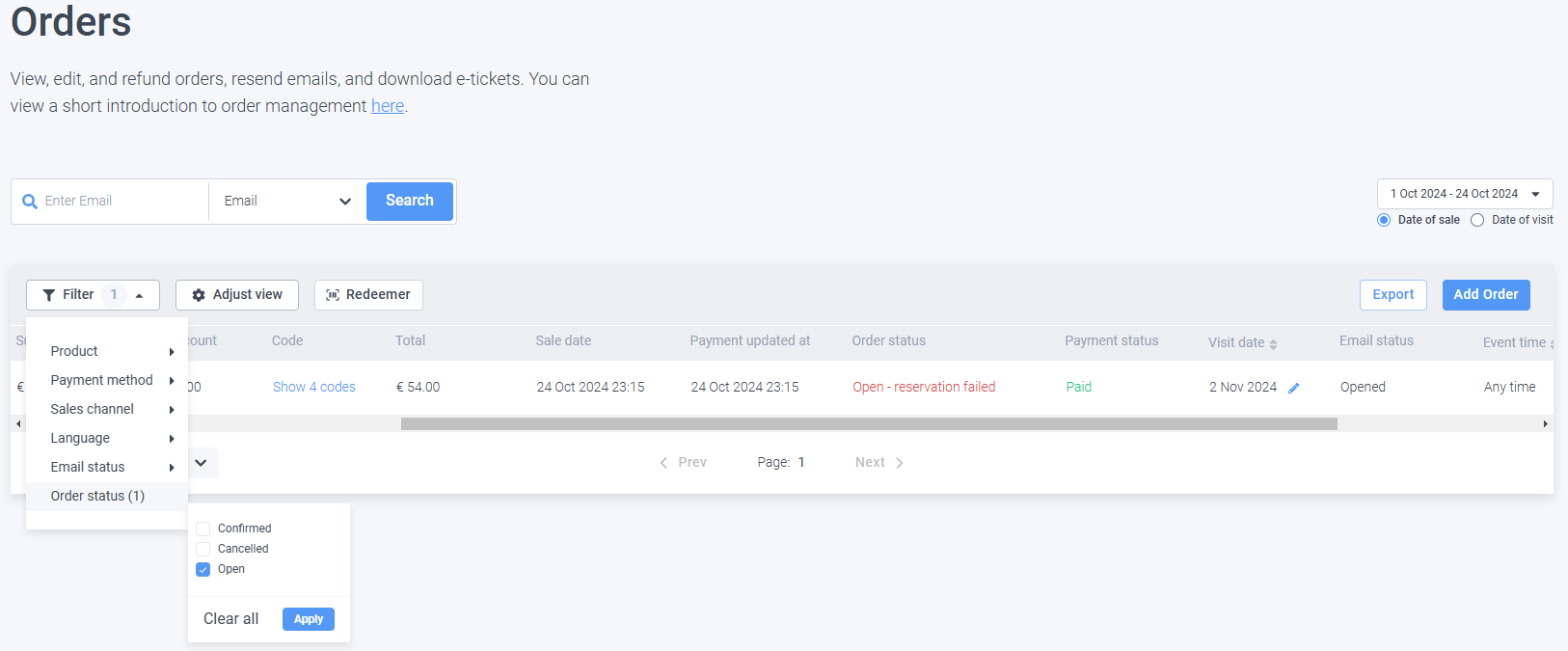
These orders will appear in the Order List, and you can also find them in your Control Panel by using the filters as shown below. You may want to take action, such as resolving the barcode generation issue (if third parties are involved, contact them) or issuing a refund.
Tip: If you hover over the 'Open - barcodes failed' field', highlighted in red below, you'll see more detailed information about the error code. Many of these error codes can be found in the third party software you are using (e.g. Elli de Haan, Crescent, Skidata). This might help resolve the issue
How will open orders look in the Convious ticket shop?
In this example, the visitor successfully paid for the order but did not receive their tickets. This issue is also visible in your Convious ticket shop, allowing the visitor to contact you directly regarding the error. If there is a technical issue with reservations, the following message will be displayed: