

How Renewal Works
When a member's membership term ends, the renewal process runs automatically based on the billing plan and payment method on file. Here is what happens:
A reminder email is sent to the member 14 days before their renewal date.
On the renewal date, payment is charged automatically using the card on file.
A new order is created for the renewal term.
If payment succeeds, a renewal confirmation email is sent and the member's barcode validity is extended to cover the new term — for example, from 1 March 2026 to 28 February 2027.
If payment fails, the member receives a payment failed notification and the system retries up to three times. The barcode remains inactive until payment succeeds. If all retries fail, the membership is cancelled and the member receives a cancellation notice.
If a member has auto-renewal disabled, no charge is made at renewal — the membership expires on its end date and the member receives an expiry reminder instead (see Expiry Reminder below).
Configuring Renewal in the Control Panel
Enabling Auto-Renewal on a Payment Plan
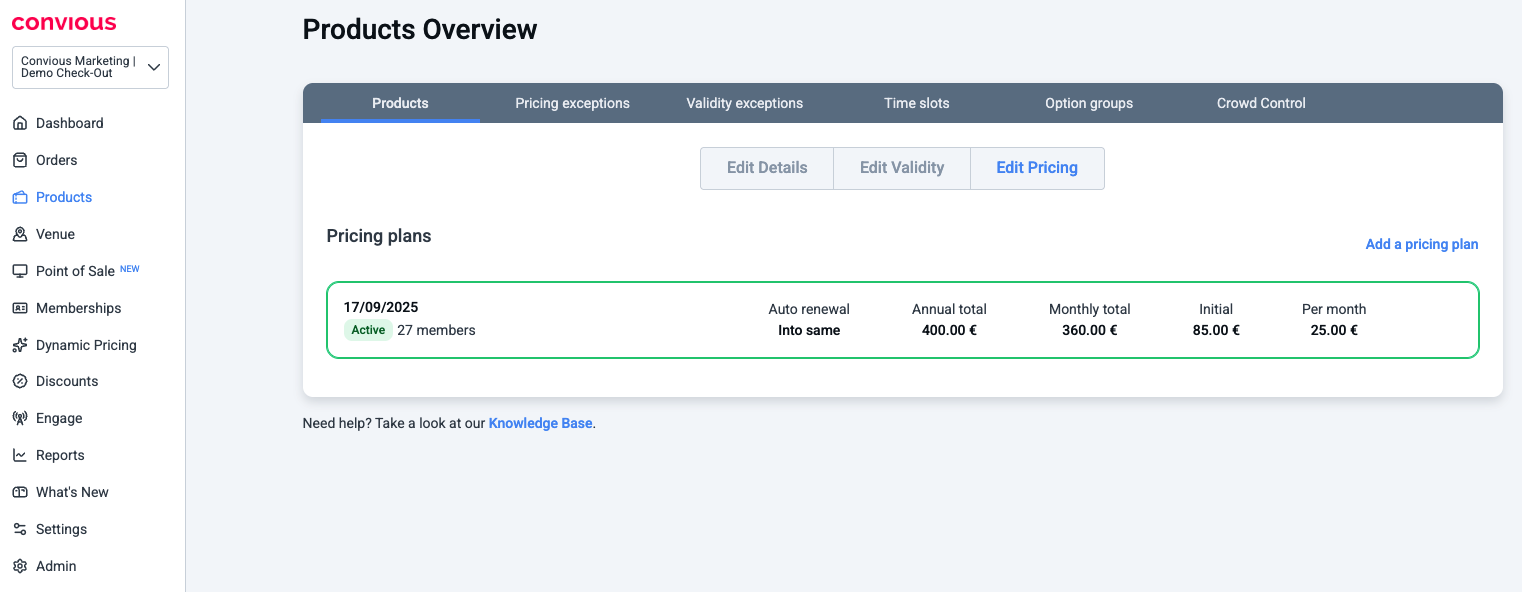
Auto-renewal is configured per payment plan. To enable or disable it, navigate to your membership product in the Control Panel and review the payment plan settings. You can change these settings yourself at any time.
💡 Note: "Active" means the plan is available for new purchases in the checkout. Members who already hold a membership on an inactive plan keep their membership and renewal behaviour unaffected — inactive simply means no new members can purchase that plan.
Adding and Managing Pricing Plans
To introduce a new pricing plan (for example, a price increase for the next renewal cycle):
Navigate to the membership product in your Control Panel and click Add a pricing plan.
Set the plan type (annual, monthly, or both) and enter the prices.
Configure the renewal rules and click Save. The new plan is saved as a draft — it is not yet visible in the checkout.
To make the plan active and available for new purchases, click the three-dot menu next to the plan and select Activate.
Once a new pricing plan is active, you need to decide what happens to members on your existing plans. From the three-dot menu on the existing plan, you have three options:
Migrate — Existing members on this plan will move to the new pricing plan at their next renewal. They receive the standard 14-day renewal reminder before this happens.
Discontinue — The plan will no longer renew. Members on this plan will reach the end of their current term and their membership will not continue.
Remove — Deletes the plan entirely. This option is only available if there are no members currently on the plan.
⚠️ Important: After activating a new pricing plan, members on a migrating plan will not renew into it immediately. Every member must first receive their 14-day renewal reminder. Renewals into the new plan only start 14 days after activation, once those reminders have been sent.
Renewal Emails
Convious sends five types of renewal-related emails to members. These are sent automatically — no action is required from your team.

Email 1: Renewal Reminder
When: 14 days before the renewal date, for members with auto-renewal enabled.
Purpose: Informs the member that their membership will renew automatically and payment will be charged. Allows them to update their payment method or opt out before the charge.
What it includes:
Renewal date and amount due (per membership holder on the order)
Payment method on file (last four digits of the card)
A Manage my Membership button linking to My Account, where the member can update their payment details or disable auto-renewal before the renewal date
Regional compliance: The email automatically includes legally required disclosures based on your venue's region:
Region | Disclosure included |
|---|---|
Germany / Netherlands | Statement that after renewal, the contract becomes indefinite and can be cancelled monthly |
United Kingdom | 14-day cooling-off period notice — members can request a full refund after renewal if the membership has not been used |
These disclosures are applied automatically. No configuration is required.
Email 2: Expiry Reminder
When: 14 days before the expiry date, for members who do not have auto-renewal enabled.
Purpose: Notifies the member that their membership is expiring and invites them to renew manually.
What it includes:
The expiry date
A Renew My Membership button linking directly to the checkout so the member can repurchase in a few clicks
💡 Note: This email does not include payment details or compliance clauses — it is an invitation to repurchase, not a notice of an automatic charge.
Email 3: Renewal Confirmation
When: Immediately after a successful renewal payment is processed.
Purpose: Confirms to the member that their membership has renewed, their payment has been processed, and their access has been extended. Their existing membership card and barcode remain active — no new pass is issued.
What it includes:
Confirmation that the membership has renewed successfully
New validity dates for the membership
A 14-day cooling-off period notice: the member can request a full refund within 14 days of renewal, provided the membership has not been used since the renewal date
💡 Note: This email replaces the standard order confirmation email for renewal transactions. It is not sent for the initial membership purchase.
Email 4: Payment Failed Notification
When: After each failed payment attempt during the retry process.
Purpose: Notifies the member that their renewal payment was unsuccessful and prompts them to update their payment method before the next retry.
What it includes:
The amount that could not be charged
A prompt to update their payment method via My Account
A Manage my Membership button linking directly to My Account
💡 Note: This email is sent after each failed attempt, up to three times. The member's barcode remains inactive until a payment attempt succeeds.
Email 5: Membership Cancellation Notice
When: After all three payment retry attempts have failed.
Purpose: Informs the member that their membership has been cancelled because payment could not be collected, and that their pass has been deactivated.
What it includes:
Confirmation that the membership has been cancelled
A note that the pass and barcode are no longer active
An invitation to repurchase a new membership via the checkout
💡 Note: Once a membership is cancelled through failed retries, the member must purchase a new membership — the existing pass cannot be reactivated.
What Members Can Do Before Renewal
Members can manage their own renewal settings via the My Account portal:
Update their payment method — to ensure the renewal charge goes through
Disable auto-renewal — to opt out before being charged
Changes must be made before the renewal date. Once the renewal payment has been processed, the standard cooling-off policy applies.
FAQ
Q: A member says they did not receive a renewal reminder. What should I check?
A: Confirm that auto-renewal is enabled on the member's plan in the Control Panel and that the renewal date has not already passed. If everything looks correct, ask the member to check their spam folder. Contact Convious Support if you believe the email was not sent.
Q: Will monthly members receive a reminder every month?
A: No. For members who move to monthly billing after their first year, the renewal reminder is sent once — when the contract transitions to indefinite. After that, reminders are not sent before each monthly charge, to avoid inbox fatigue.
Q: Can I customise the renewal emails?
A: The core content and legally required disclosures are managed by Convious to ensure compliance. Your venue name, product names, and branding are applied automatically from your Control Panel settings. Contact Convious Support for specific branding questions.
Q: What happens if a member's payment fails at renewal?
A: The system retries the payment up to three times. The member receives a payment failed notification after each unsuccessful attempt, prompting them to update their payment method. Their barcode remains inactive until payment succeeds. If all three retries fail, the membership is cancelled, the pass is deactivated, and the member receives a cancellation notice.
Q: A member wants to renew but has auto-renewal disabled — how do they do it?
A: They will receive an expiry reminder 14 days before their membership ends, with a direct link to repurchase. They can also log in to My Account at any time to renew manually.