

Why it’s easier on the All-in-One rate
With the All-in-One model, all platform and payment fees are bundled and automatically tracked, making it easy to verify your monthly invoice directly in the dashboard.
✅ What you can do in the Fees tab:
See an up-to-date view of your fees for the current or previous month
Click on any commission type to filter and view the related orders
Gain full transparency into how every line on your invoice is calculated
No more surprises, just clear numbers, backed by real-time order data.
How to reconcile your invoice step by step
Go to your Sales & Finance Dashboard in the Control Panel
Navigate to the Fees tab
Use the filter to select:
Previous period to match your invoice
Or Current period so far to get a preview of next month’s fees
Check the totals at the bottom of the table
Click on any line item (e.g. Regular commission, Payment fee) to view the underlying orders
This allows you to validate each fee with full transparency, down to the individual order level.
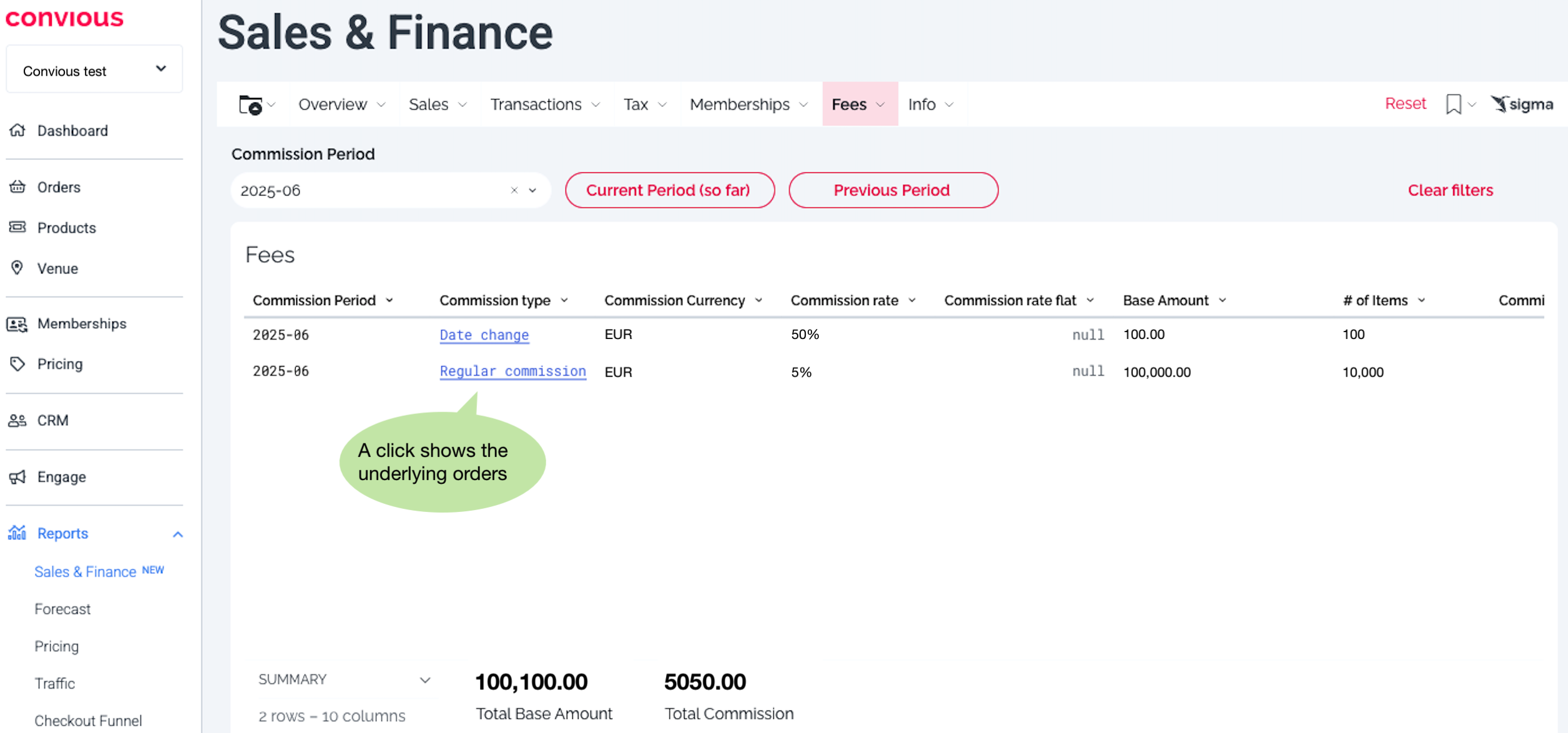
Types of commissions shown in the Fees tab
In the Fees tab, all commission types are clearly separated, so you can easily understand what you’re being charged for and why:
Regular commission
Applies to all standard products (e.g. tickets, memberships, upsells) and includes both ticketing and payment processing fees in a single combined rate. Good to know: this commission also applies to refunds.Donations
No commission is charged on donation products: these are always shown with a €0 fee.Date change
Commission applied to date change articles, for covering the service provided.OTA (Online Travel Agencies)
Separate line item showing commission on OTA orders, such as bookings from Get Your Guide or other connected resellers.
Each of these appears as a separate row in your Fees tab, allowing for easy filtering and full traceability. You can click on any row to view the related orders and confirm the fee calculations.
Need help?
If you have questions or you are not on the All-in-One rate yet, please reach out to your Customer Success Manager.