

🔎 How to reconcile your invoice using the Sales & Finance Dashboard
With the launch of our Sales & Finance Dashboard, reconciling your invoice requires fewer steps. However, there are a few key changes to be aware of—especially related to timezone handling and filtering.
Follow the steps below to ensure your invoice matches your sales data precisely.
📊 Step 1: Use the “Sales Detailed” table
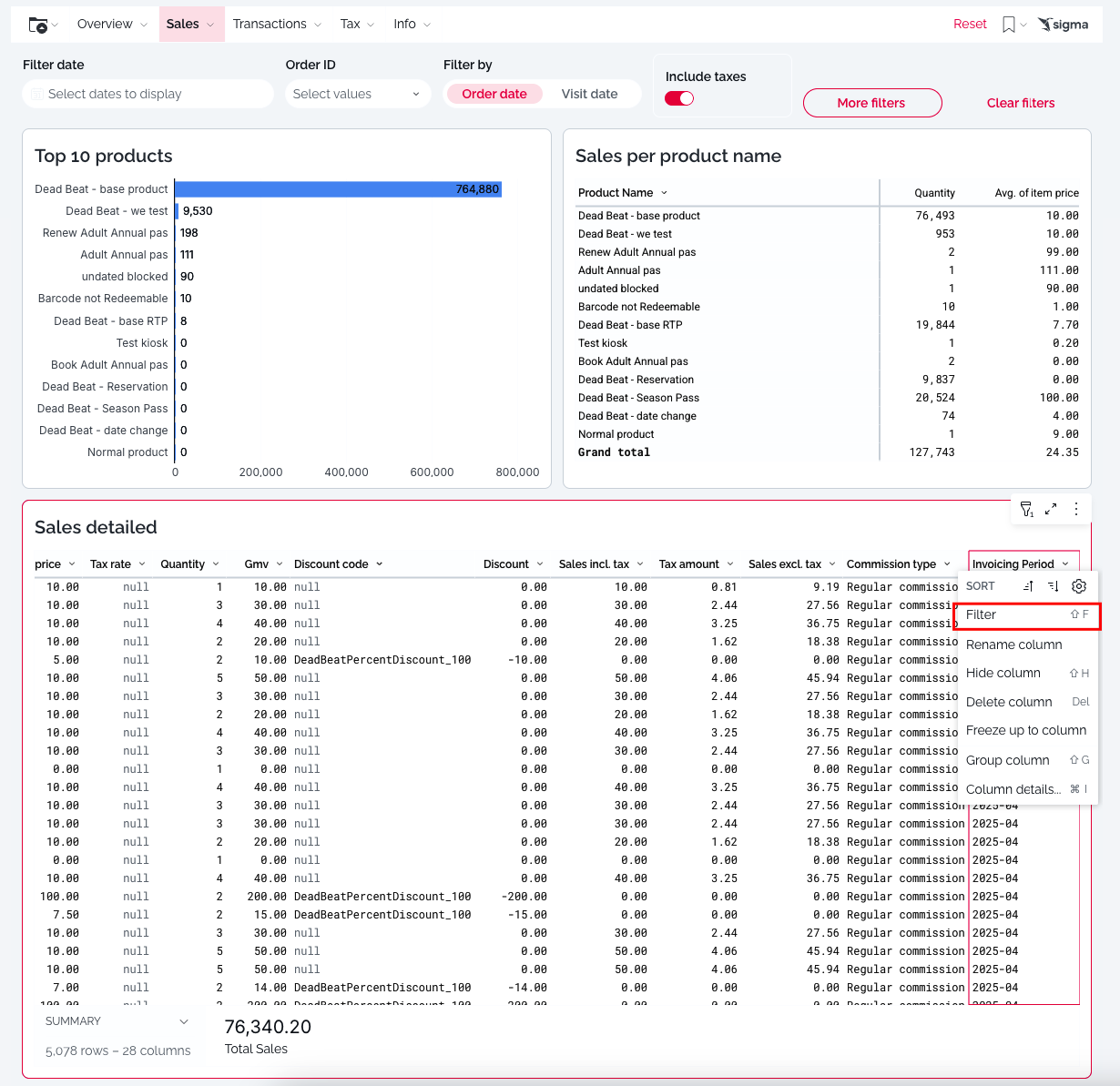
Next, navigate to the “Sales Detailed” table. This table provides line-item-level visibility into all your sales.
In this table:
🗓 Filter by "Invoicing Period"
Scroll to the last column titled "Invoicing Period".
Press on the drop down, and select "Filter".
Select the relevant month (e.g.,
2025-04for April).
This ensures you’re looking at the exact sales included in your invoice.
📈 Step 2: Compare the totals
At the bottom of the table, you’ll see the total sales.
To match this to your invoice, sum the following sales types (if applicable):
Tickets (column product type)
Upsell (column product type)
Date change fees (column product type)
Reseller sales (column sales channel)
API sales (column sales channel)
These combined values should reconcile with the total shown on your invoice.
✅ Summary
Action | Why |
|---|---|
Remove the date filter | Avoid timezone mismatches |
Filter by "Invoicing Period" | Ensure you're looking at the invoiced month |
Sum specific sale types | These form the invoice total |
📥 Need Help?
If you have questions about specific invoice items, please contact our support team at support@convious.com.