

What Are Reporting Categories?
Reporting Categories let you assign a code to your products for financial reporting and accounting purposes. By grouping products under categories each with its own code your finance team can analyse revenue, taxes, and discounts broken down by category, rather than by individual product.
For example, you could create a category called "Day Tickets" with code DT-001 and assign all your day ticket products to it. Your Ledger Summary Report will then show exactly how much revenue, tax, and discount was collected across all day ticket sales.
This feature is designed for venues that need to align their Convious sales data with an internal chart of accounts or financial reporting system.
Why Use Reporting Categories?
Cleaner financial reporting - group similar products together and see revenue totals by category, not just by individual product
Accounting accuracy - categories are captured at the time of purchase (immutable), so historical reports stay reliable even if you rename or restructure products later
Flexible setup - create as many categories as you need and assign multiple products to each one
Where to Find It
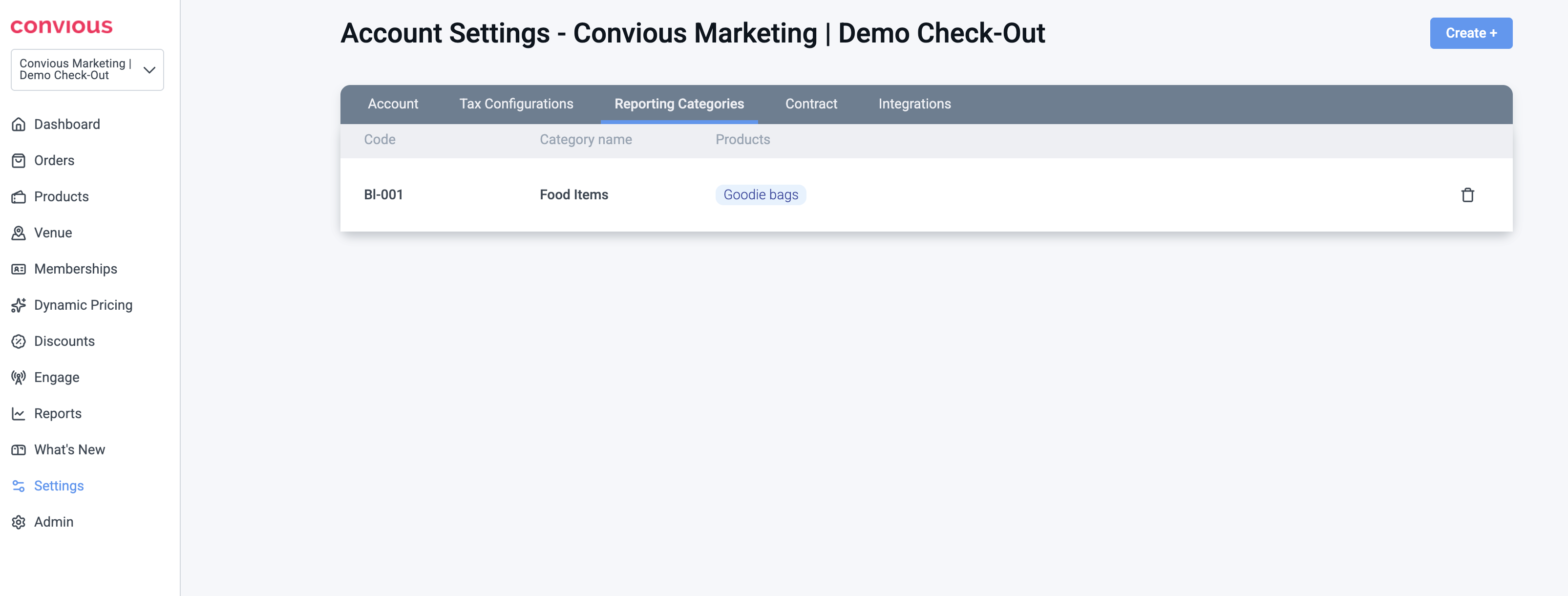
Navigate to: Settings → Account → Reporting Categories
The tab shows all your configured categories with their code, category name, and the products assigned to each one.
How to Set Up Reporting Categories
Step 1 - Create a Category
Go to Settings in the left navigation menu.
Click the Account in Menu then Reporting Categories tab.
Click Create + in the top right corner.
Enter a Code (e.g.
DT-001) - this is the identifier used in your financial reports.Enter a Category name (e.g.
Day Tickets) - a descriptive label for internal use.Click Save.
Tip: Use a consistent coding convention that matches your internal chart of accounts for example, prefixing by revenue type (DT-for day tickets,MB-for memberships,FB-for food & beverage).
Step 2 - Assign Products to a Category
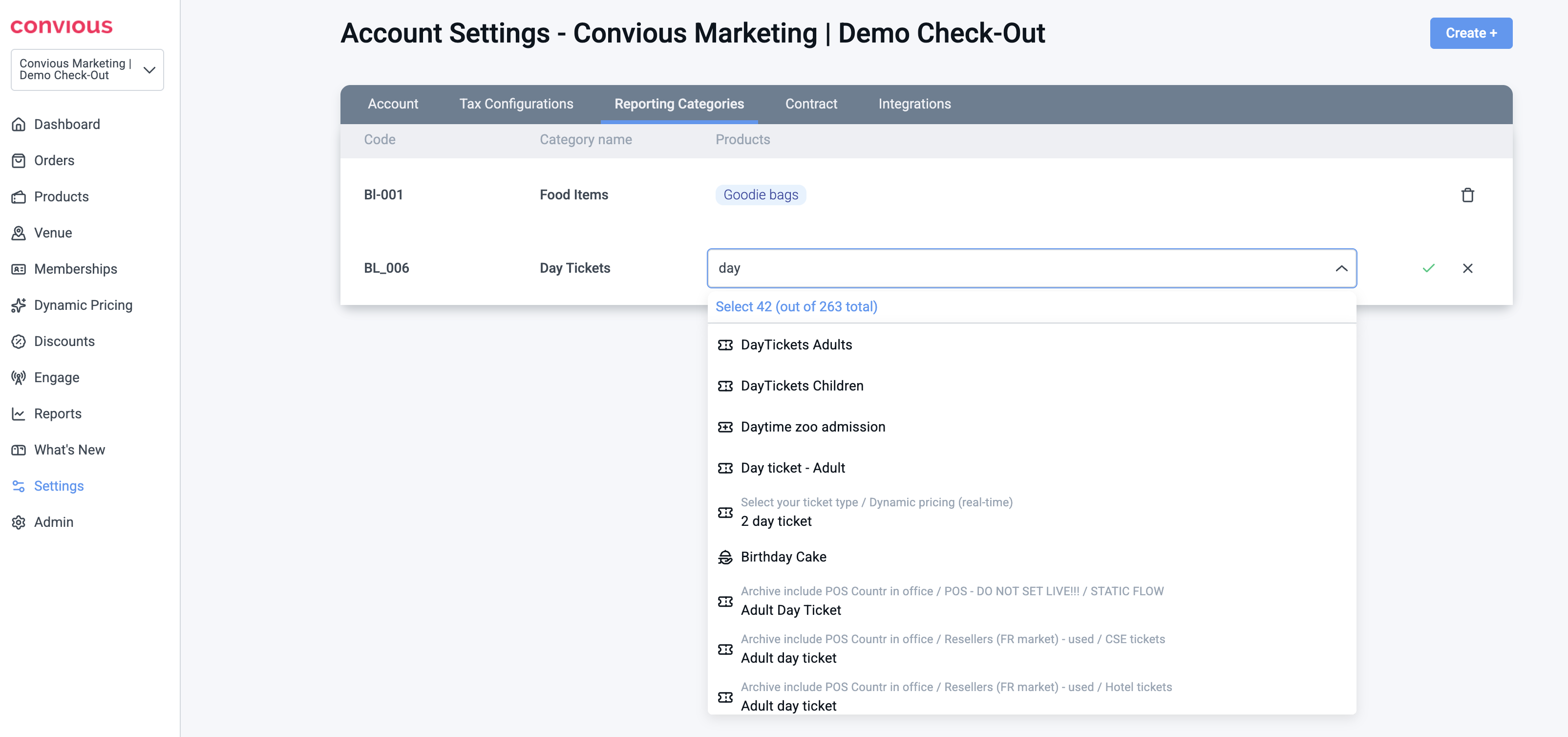
In the Reporting Categories tab, find the category you just created.
Click the Products column for that category.
Use the search field to find and select the products that belong to this category.
Select all relevant products, you can assign multiple products to a single category.
Click the checkmark to confirm.
Note: A product can belong to more than one category. If it does, all assigned categories will appear comma-separated in your Sales tab reporting column.
How It Works in Reports
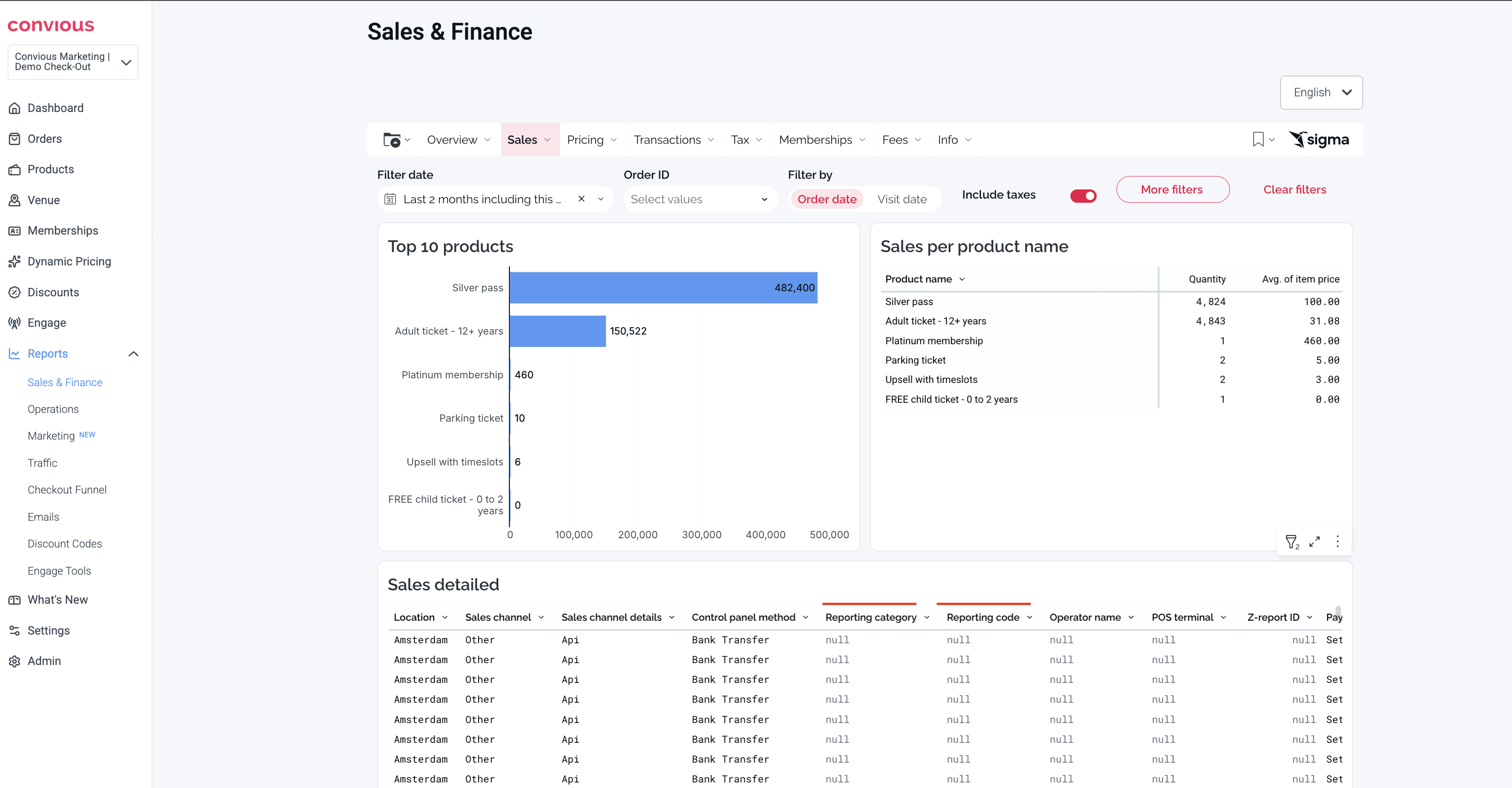
Navigate to: Reports → Sales & Finance → Sales tab → Sales Detailed
Sales & Finance → Sales Detailed Table - a new column showing the reporting category assigned at the time of purchase
Two new columns are now available in the Sales Detailed table:
Reporting Category — the category name assigned to the product at the time of purchase
Reporting Code — the corresponding code for use in your chart of accounts or financial system
Note: If a product has not been assigned to a category, both columns will show as empty. We recommend assigning all revenue-generating products to a category for clean reporting.
Frequently Asked Questions
Can I rename a category after I've created it? Yes. You can update the category name at any time. The code and historical report data will not be affected.
What happens if I don't assign a product to any category? Products with no category assigned will appear as uncategorised in your reports. We recommend assigning all revenue-generating products to a category for clean reporting.
Can I delete a category? Yes. Deleting a category removes it from future assignments. Historical orders that used that category will retain their recorded category in reports.
Do Reporting Categories affect checkout or pricing? No. This is a reporting and labelling feature only. It has no impact on your checkout flow, pricing, discounts, or payment processing.
I don't see the Reporting Categories tab in my Settings - how do I get access? Reach out to our support team to have this feature enabled for your account.