

Overview
The new Discount Codes section allows you to create, manage, and upload codes more easily than before. Discount codes can be a powerful tool in your marketing strategy, helping to acquire new visitors and encouraging new purchases with a higher cart value.
What is Discount Codes?
Discount Codes are special codes that give visitors a reduced price on their ticket purchase. Partners can use them to offer promotions, rewards, or targeted discounts either on the entire cart or on specific products. They help drive sales, attract new visitors, and support marketing campaign.
Types of Discount Codes
There are two main types of discount codes available:
Cart Discounts: apply to the entire cart total, no matter which products are in it. They're great for broad promotions like “10% off your order.”
Product Discounts: apply only to selected products in the cart. These are useful when you want to promote specific tickets, like giving a discount on child tickets or season passes.
These options give you the flexibility to run targeted or general promotions based on your business goals.
How to create Discount Codes
Navigate to your control panel and select "Discount Codes" from side navigation.
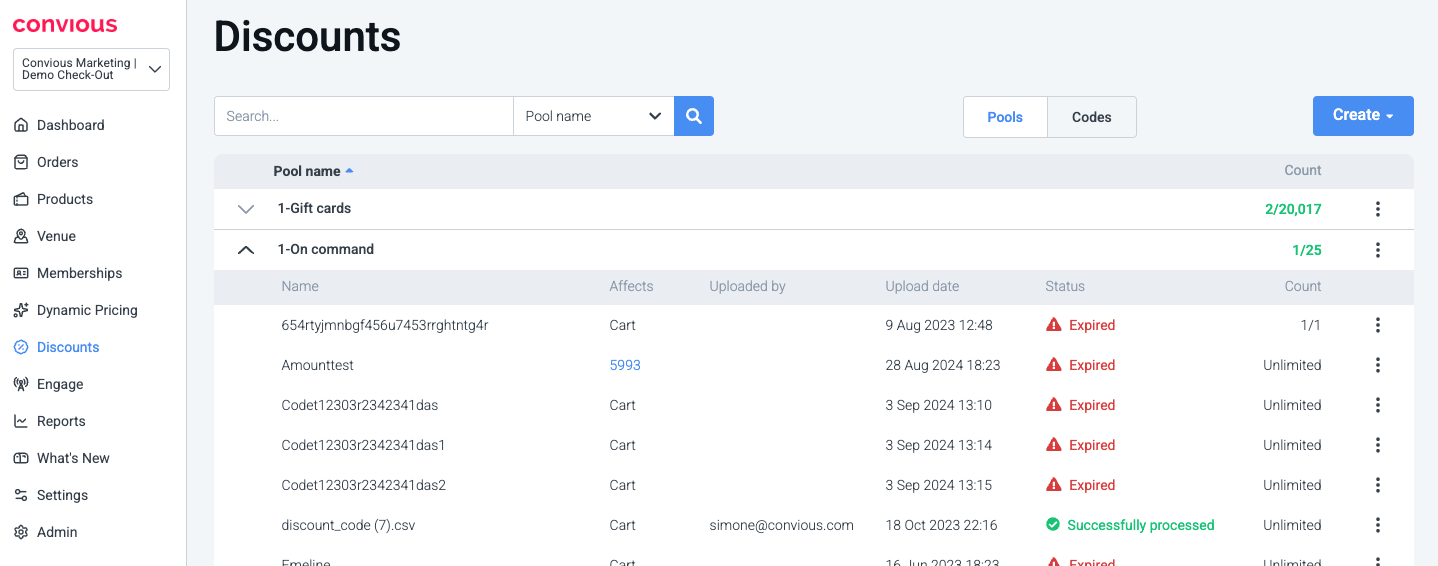
Create Discount Pool
A Discount Pool is a way to group and organize your discount codes. Pools help you manage codes more efficiently, especially when running multiple campaigns or targeting different customer segments.
For example, you might create one pool for a “Summer Promo” and another for “VIP Guests.” Each pool can contain multiple codes and makes it easier to track performance, upload CSVs, or deactivate a specific group of codes when needed.
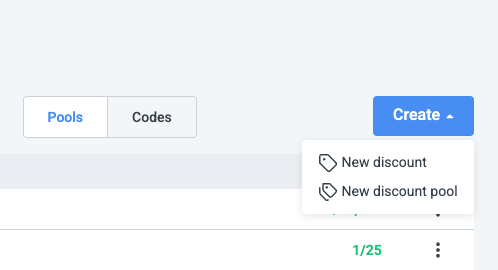
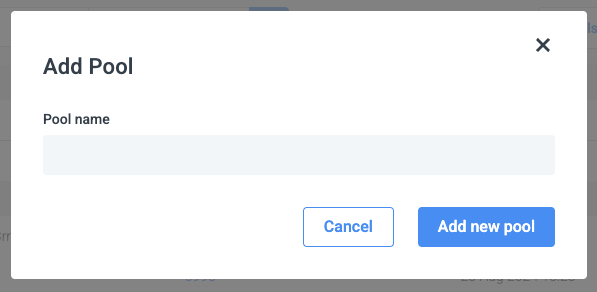
When creating a new discount (cart or product), you'll be prompted to either select an existing pool or create a new one. Pools are required for both individual codes and bulk imports.
Enter the name of Discount Pool
Create Cart Discount
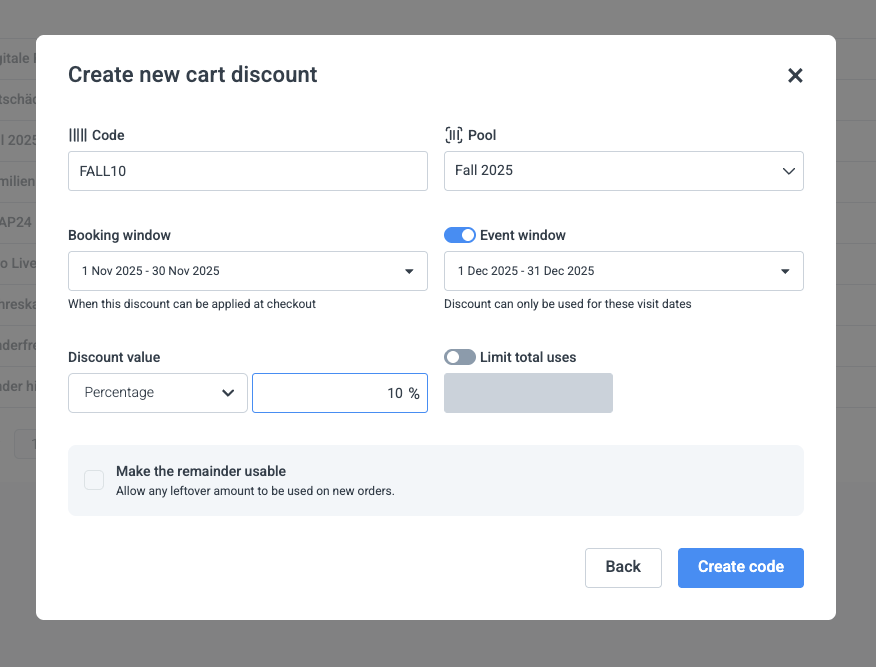
Complete the following fields:
Code*: Enter the unique discount code (e.g.
FALL10). This is the code customers will use at checkout.Pool*: Select a Pool from the list to group your discount codes for easier tracking and management.
Booking Window*:Set the date range during which the discount code can be used at checkout.
→ Example: Code can be entered between Nov 1–Nov 30.Event Window:Set the date range during which the visit can take place using this code.
→ Example: The ticket purchased with the discount can be used to visit the venue any time from Dec 1–Dec 31Discount Value*:Choose between:
Percentage (e.g. 10%, 25%, 70%)
Fixed Amount (e.g. €10 off, €15 off)
Limit Total Use (Optional): Set a usage cap for this code (e.g. max 50 redemptions).
Make the Remainder Usable (Optional): If using a fixed discount amount, enable this option to let the remaining value be used again within the same cart.
→ Note: This only works when Limit total uses = 1
<strong>Event & Booking Window example</strong><br><br>Let’s say you’re running a Black Friday campaign:<br><br><strong>Discount Code:</strong> BF2025 (20% off cart) <br><strong>Booking Window:</strong> Nov 24 – Nov 27 (Customers can use the code during this period) <br><strong>Event Window:</strong> Dec 1 – Dec 31 (Visitors can book their visit to happen within this time frame)<br><br>This means: <br>The code can only be entered in checkout between Nov 24–27. <br>Tickets purchased with the discount must be valid for a visit in December.Create Product Discount
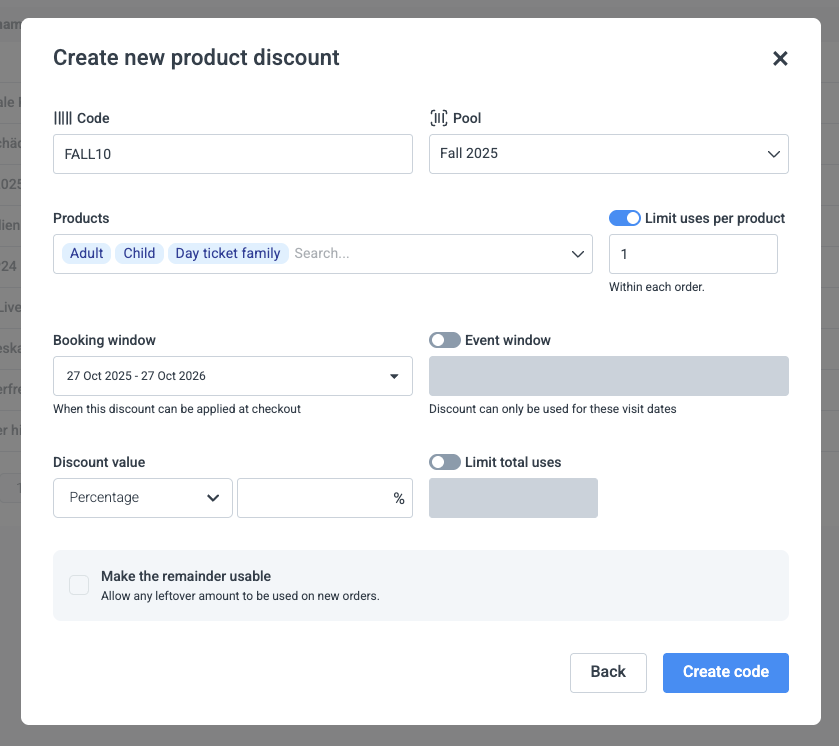
Complete the following fields:
Code*: Enter the unique discount code (e.g.
FALL10). This is the code customers will use at checkout.Pool*: Select a Pool from the list to group your discount codes for easier tracking and management.
Products*: The discount will apply only to these selected items in the cart.
Limit uses per product: Limit how many times code can be used for each product.
Booking Window*: Set the date range during which the discount code can be used at checkout.
→ Example: Code can be entered between Nov 1–Nov 30.Event Window:Set the date range during which the visit can take place using this code.
→ Example: The ticket purchased with the discount can be used to visit the venue any time from Dec 1–Dec 31Discount Value*:Choose between:
Percentage (e.g. 10%, 25%, 70%)
Fixed Amount (e.g. €10 off, €15 off)
Limit Total Use (Optional):Set a usage cap for this code (e.g. max 50 redemptions).
Make the Remainder Usable (Optional):
If using a fixed discount amount, enable this option to let the remaining value be used again within the same cart.
→ Note: This only works when Limit total uses = 1
How to find Discount created codes
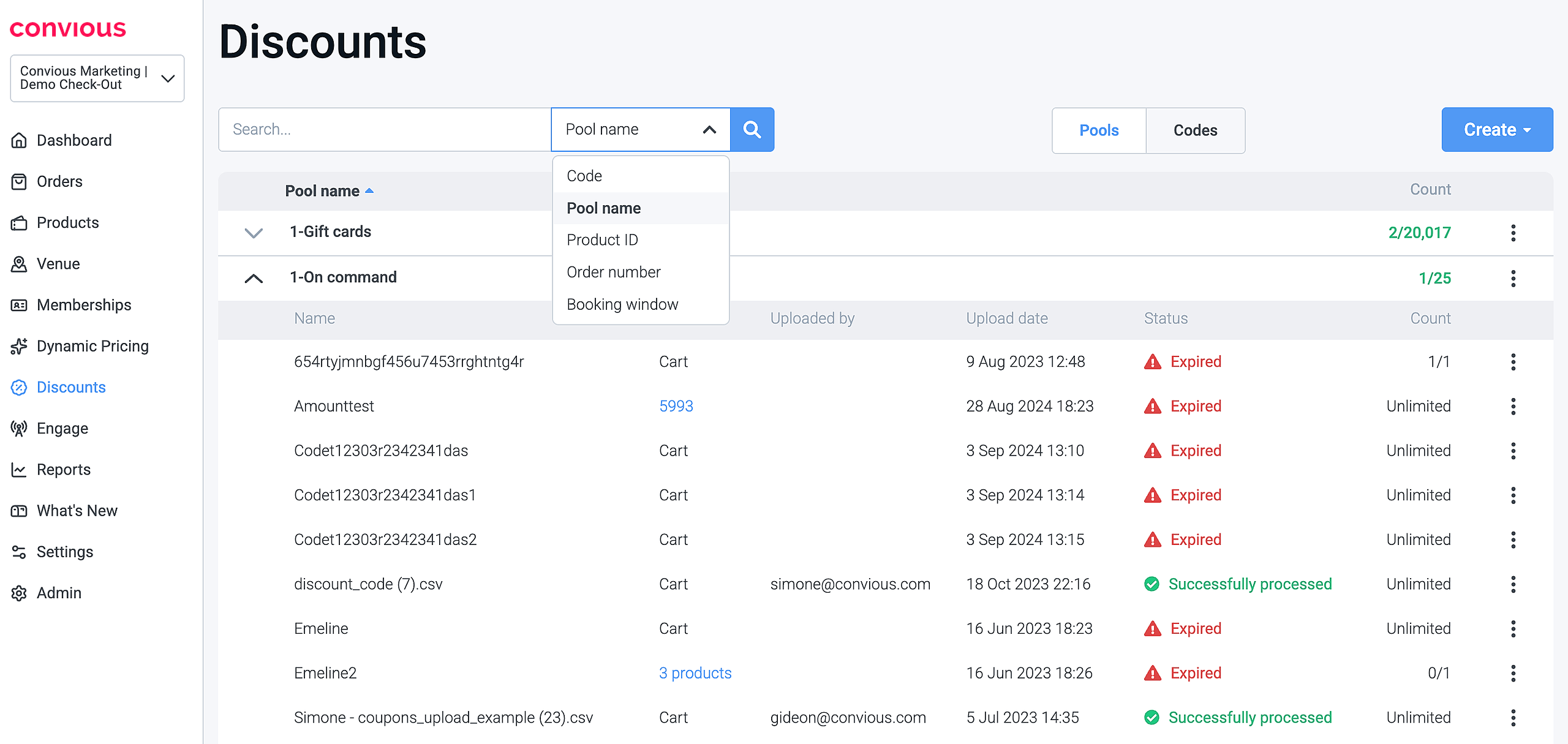
Once you've created a discount code, you can easily find it using the search bar in the Discounts section.
Simply type the code, order number, pool name, product ID or Booking window into the search field.
The system will automatically detect whether it's a code or part of a pool, and adjust the layout accordingly.
Searching for a code will show results in the Codes view.
Searching for a pool returns results in the Pools view.
Clear the search field to return to the full Pools list.
From the results, you can quickly check:
Whether the code is a Cart or Product Discount
Its validity period
Usage count (if limited)
The value and orders where it has been applied
This makes it simple to track, manage, or edit codes without switching between views.
Bulk Discount code import via .csv file
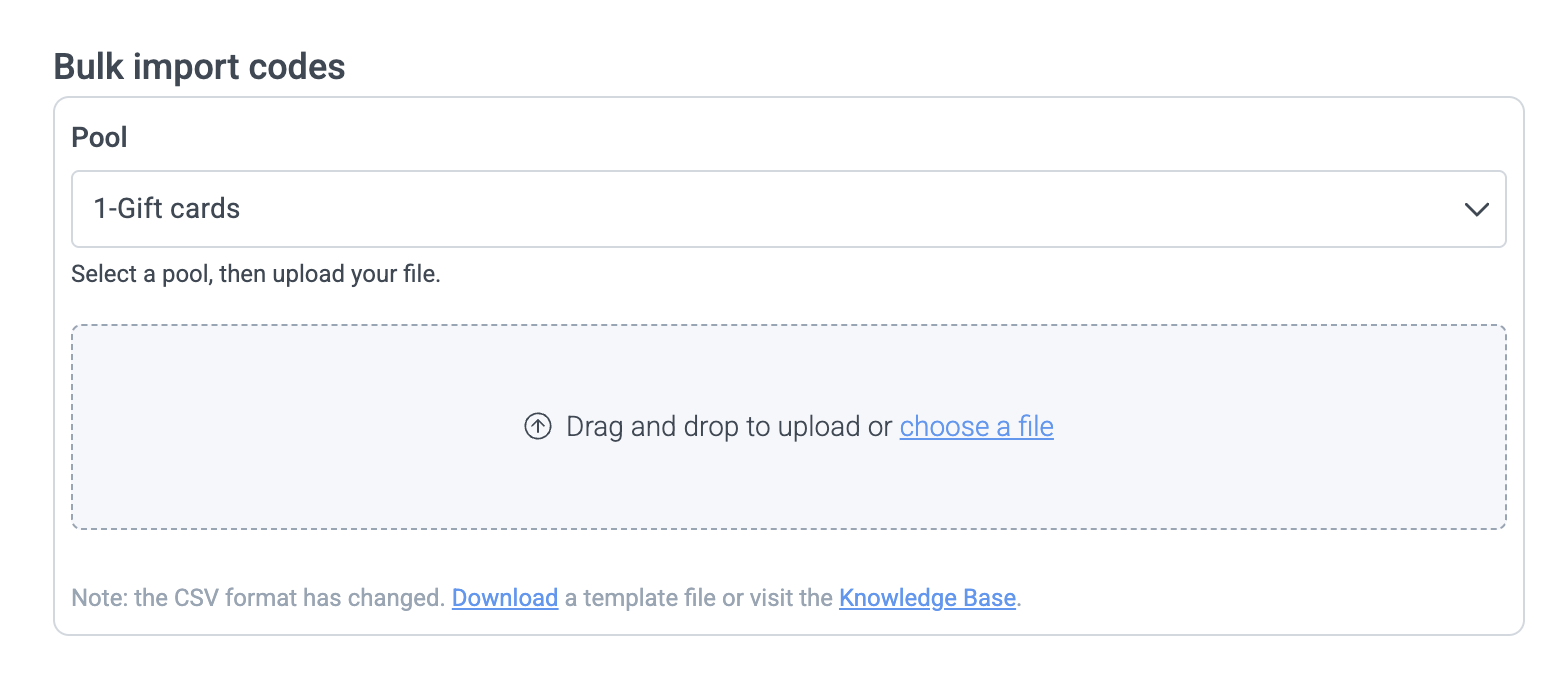
The Bulk Import Codes option allows you to upload multiple discount codes at once using a .csv file. This is ideal for large campaigns or when creating unique, single-use codes in bulk.
How it works:
Click on "Create", then select"New Discount"
Select a Pool
Choose the discount pool where you want the uploaded codes to be stored (e.g. “Gift cards”).Upload your file
Drag and drop your CSV file into the upload box, or click “choose a file” to select it manually.
💡 Note: The CSV format has recently changed.
Make sure you’re using the updated template – you can download it using the same window or visit the Knowledge Base for full details.
Once uploaded, the system will process your codes and display them under the selected pool, along with their status and availability.
File Format
code* : Can be any combination of numbers and letters of at least 4 characters
booking_window_start* : YYYY-MM-DD (when the code is available in checkout)
booking_window_end* : YYYY-MM-DD (when the code is available in checkout)
percent_reduction : The percentage of the discount. e.g. 25%, 50%
flat_reduction : The flat value reduction from the discount. e.g. 30, 50 EUR
article_id : only require when you want to create a Product Discount. list of product IDs separated by | (pipe). Product IDs can be found under Venue --> Codes --> Product IDs
amount : This indicates how many products the code can be applied to in the cart. For example, if you have 5 products in the cart but the amount is 1, only one of the products will be discounted. For unlimited (all) articles in the cart, you can write 99.
max_uses : Max redemptions attempt allowed, leave empty for unlimited.
remainder_usable : Put a 1 if you want the remainder of the discount to be usable and a 0 if it should not be usable. The new remainder voucher will be part of the ticket download.
event_window_start : YYYY-MM-DD (when the code can be used to book an event)
event_window_end : YYYY-MM-DD (when the code can be used to book an event)
Sample .csv file

What if my file is not being uploaded?
This might happen due to the wrong encoding or a different separator from a comma (for example, a semicolon).
We are recommending you to use Google Sheets to prepare your file because it uses the correct encoding and delimiter by default. If you still would like to use Excel, please note that the separator, in this case, the comma, is based on the locale/region that your device is set up in and, thus, may be different.
If you are using excel, we found comprehensive instructions for windows users to follow in this case:
Make sure Excel is closed
Open Control Pane on your windows computer!
This can be done by hitting win+r and writing “Control Panel” in the Run-window
Select Region
Click the Additional Settings
Find the List separator and change it to a comma (“,”).
Click OK -> OK -> exit Control Panel
Open the Excel file you want to export to a comma delimited file
Select File, Save As
Change the ‘Save as type’ to ‘CSV (Comma delimited)(*.csv)’
Change the name and file extension if you want, by default stays as csv even though a different delimiter
Click Save -> OK -> Yes
On Mac, you can also do that under Regional Settings (choose . as a Decimal):
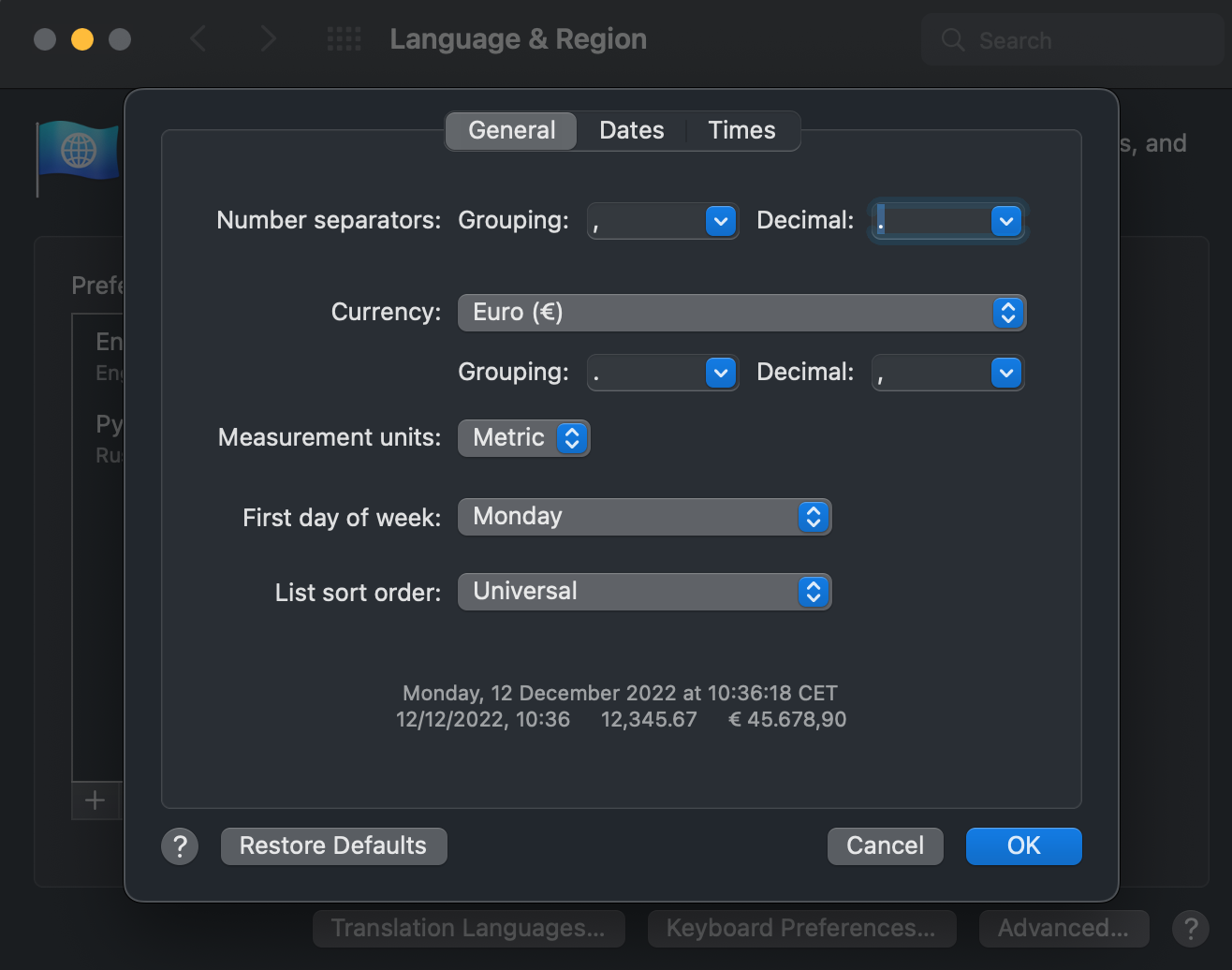
Also, always save the file as CSV UTF-8 (comma-delimited).
How to update the value of existing code?
If you would like to update the value of the code, you can upload a new CSV file with the same codes but with updated values.
Use the same Discount Codes that were used before.
Code Reactivation Time
Discount codes are temporarily blocked while the system waits for payment confirmation. If no confirmation is received, the system automatically frees up the capacity.
Standard Reactivation Time
By default, codes are held for 4 hours before being reactivated.
New Option: 60-Minute Reactivation
To improve the customer experience, you can reduce the reactivation window to 60 minutes. Switching to this shorter reactivation time:
Speeds up code availability for users.
Reduces pressure on support teams by minimising inquiries about blocked codes.
surrounded
We recommend updating your settings to the 60-minute window. For help adjusting these settings, contact our support team at support@convious.com.